

Quick Summary
- Yes. Attackers can steal your signed-in session through a fake sign-in page, which gets around text codes and simple push approvals.
- A password reset doesn’t always remove an attacker, because stolen sessions, MFA methods they’ve added, and approved apps keep working until someone removes them.
- Hidden inbox rules let attackers read your payment conversations for weeks, but each step leaves warning signs that identity threat detection and response (ITDR) watches for around the clock.
- Some scams, such as lookalike domains and a vendor’s hacked account, never touch your accounts at all, so they call for email filtering and a payment verification policy.
If you’d rather talk it through, Bulletproof IT can walk you through how your Microsoft 365 accounts are protected.
When a vendor or another local business has its email hacked, most owners assume their own accounts are safe. Their team uses strong passwords and multifactor authentication (MFA), after all. But someone can still get into your business email without your password, and MFA won’t always stop them. In May 2026, the Cranbrook RCMP warned local businesses about fraudsters who took over Microsoft 365 email accounts, including ones protected by two-factor authentication, then emailed those companies’ own clients asking them to pay outstanding invoices into a different bank account.
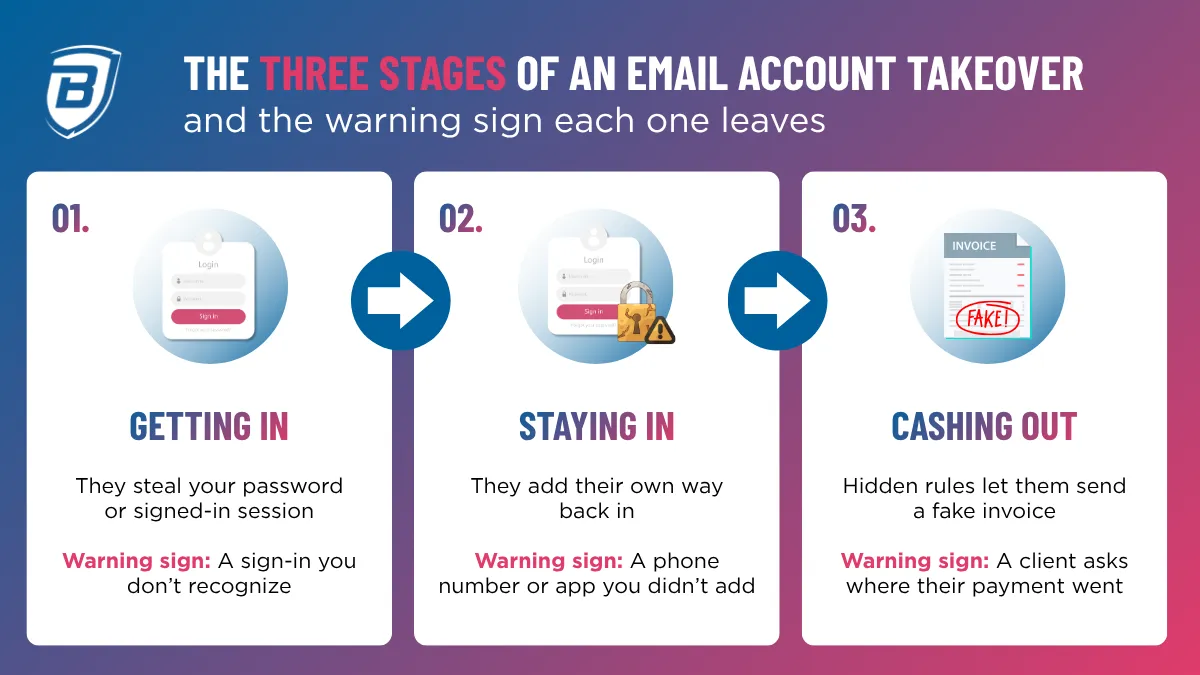
This type of attack is called an account takeover, and it happens in three stages: attackers get in, stay in even after a password change, and then cash out through payment fraud.
MFA is one of the first protections Bulletproof IT puts in place for clients, and it stops most attacks. But it’s one layer, and knowing how attackers get past it shows why the other layers matter. No single layer catches everything, though: some scams never touch your accounts at all.
That can be unsettling to hear, especially when the first sign of trouble is often a client asking why their payment never arrived. The good news is that these attacks are much easier to spot once you know how they work. This article walks through each stage, the warning signs it leaves, the scams that never touch your accounts, and the steps you can take this week to stay protected.
How Do Attackers Get Into Business Email Accounts, Even With MFA Turned On?
MFA stops most attacks, which is why every business should have it turned on. But attackers have ways around it, and one Microsoft 365 login opens more than your email: files in OneDrive and SharePoint, Teams conversations, client records, and contracts.
With that much at stake, it helps to know how attackers get in. Each method below ends with the sign-in protection that stops it, so you can check which ones your business already has.
Stolen and Reused Passwords
The simplest attack starts with your password. Attackers steal it through fake Microsoft 365 sign-in pages, through malware that collects passwords saved in your browser, or by buying it from databases of credentials leaked when someone reused their work password on a site that later got breached. This is where MFA does its job well: an attacker with only your password still needs to complete the second sign-in step.
Fake Sign-In Pages That Capture Your MFA Code Too
The next method targets that second step. The attacker sends you to a fake sign-in page that sits between you and the real Microsoft login. When you enter your password and MFA code, the page relays both to Microsoft in real time. Microsoft approves the sign-in, and the attacker captures your signed-in session. This is called session hijacking.
A session is what keeps you signed in after you’ve proven who you are. Think of it like a wristband at the Calgary Stampede: you show your ticket once at the gate, and the wristband gets you back in all day. To the staff at the gate, whoever is wearing the wristband is you.
From your side, nothing looks unusual. Your email opened and your day carried on, while the attacker used a copy of your session to get in without your password or MFA code. Malware can also steal sessions straight from your web browser, with no fake page needed.
A stolen session eventually expires, just like a wristband at the end of the day. Until then, the attacker can do anything in your account that you could, including adding their own phone number as an MFA method. It’s the equivalent of using the stolen wristband to buy tomorrow’s ticket in your name.
The Canadian Centre for Cyber Security detected more than 100 fake sign-in page campaigns targeting Microsoft accounts between 2023 and early 2025. Its guidance recommends phishing-resistant sign-in methods such as passkeys. A passkey is tied to the real website, so it won’t work on a fake sign-in page and gives an attacker no code to steal.
Approval Requests That Keep Coming Until Someone Taps Yes
An attacker who already has your password can also try to get you to approve the sign-in yourself. They trigger MFA notifications on your phone over and over, often late at night or when you’re busy, hoping you’ll tap “Approve” just to make them stop. One approval is all it takes.
The U.S. Cybersecurity and Infrastructure Security Agency warns that simple push approvals without number matching are vulnerable to this kind of push bombing. Number matching makes you type the number shown on the sign-in screen into your authenticator app, so a request you didn’t start can’t be approved with one tap. Passkeys go further: they send no approval notification at all, so there’s nothing to bombard you with.
Why Doesn’t Changing Your Password Always Lock Hackers Out?
Resetting your password locks out anyone trying to sign in with the old one, but three kinds of access can survive it.
- A stolen session. Microsoft’s guidance for compromised accounts treats revoking active sessions as a separate step from resetting the password. Like a Stampede wristband, a stolen session keeps working after the ticket changes, until it expires or someone revokes it.
- An MFA method the attacker added. If they’ve registered their own phone number, they can pass MFA the next time they get your password. That’s why Microsoft says recovery means removing any MFA changes the attacker made, not just resetting the password.
- An approved app. Attackers send links asking you to grant an app access to your Microsoft 365 account, often disguised as a document viewer or security check. Click Accept, and the app can access your mailbox without your password, even after you change it. This is called consent phishing, and by default, Microsoft 365 lets users approve this kind of access unless an administrator has restricted it.
All three stay open until someone deliberately closes them, which is why the steps later in this article include checking MFA methods and connected apps.
How Do Scammers Use Hidden Inbox Rules to Track Your Invoices?
After an invoice fraud incident, owners often ask how the scammer knew the invoice was due, its exact amount, and where the payment normally went. Often, the attacker had been reading the conversation all along.
Once inside a mailbox, attackers create inbox rules with the same Outlook feature you might use to sort newsletters. One rule forwards messages containing words like “invoice,” “payment,” or “banking” to an outside address. Another moves client replies into folders nobody checks, such as Junk or RSS Subscriptions. Some rules can even be hidden from Outlook’s normal view.
After following the conversation for days or weeks, the attacker sends a convincing copy of the invoice from your account with their own banking details swapped in. It matches the original amount and wording closely enough that the client has no reason to doubt it.
From there, it follows the usual pattern of business email compromise: the money lands in the attacker’s account. Because client replies are rerouted, you may not know anything is wrong until the payment shows up as overdue.
Would You Know If Someone Got Into Your Business Email?
Every attack described above leaves a trace somewhere in Microsoft 365. Some warning signs are visible to anyone who uses the account, while others only show up in sign-in records that most employees never check.
| Warning sign | What it might mean |
|---|---|
| You’re signed out unexpectedly or repeatedly locked out | Someone may be trying your password or may have changed it |
| You receive password reset emails you never requested | Someone may be trying to take control of your account |
| Messages appear in Sent Items that nobody on your team wrote | Your account is being used to send emails without your knowledge |
| Emails go missing, or you notice new forwarding rules or changed settings | Someone may have altered your inbox rules to hide their activity |
| An MFA method or phone number you didn’t add appears on your account | Someone may have set up their own way back into your account |
| An unfamiliar device appears in your sign-in activity | Someone else may have signed in using your credentials |
| Sign-ins come from a country where nobody on your team is, or through an anonymous VPN service | Someone outside your business may be accessing the account |
| Sign-ins appear from two places too far apart to travel between, such as Calgary and then overseas 15 minutes later | Someone else may be using your login |
The last three warning signs rarely show up in your inbox. They appear in Microsoft 365’s sign-in records, which someone needs to actively review, and many small businesses don’t have anyone doing that regularly.
Timing makes this harder. A suspicious sign-in on a Friday evening can go unnoticed until Monday, giving the attacker a whole weekend to read conversations, change inbox rules, and prepare payment fraud. Catching these signs reliably takes someone whose job is to look for them.
How Does Identity Threat Detection and Response (ITDR) Catch These Warning Signs?
Few small businesses have someone on staff to do this, so many rely on identity threat detection and response (ITDR), which pairs monitoring software with people who review what it flags. The software watches sign-ins, inbox rules, MFA changes, and app permissions for signs of an account takeover, and the team investigates anything suspicious around the clock.
Detection is only half the job. An alert at 2 a.m. on a Saturday is useful only if someone acts before the attacker does more damage, by revoking sessions, removing malicious inbox rules and MFA methods, and reviewing unauthorized apps before the next invoice goes out. For Bulletproof IT clients, that alert goes to a 24/7 security operations centre that can isolate the unauthorized login.
Human judgment matters too, since a VPN connection, a phone hotspot, or business travel can trigger the same alerts as an attack.
What Identity Monitoring Can’t Catch
ITDR watches your accounts for suspicious activity, but some email scams never touch your accounts at all.
A criminal can register a lookalike domain, such as yourcornpany.ca instead of yourcompany.ca, with “rn” in place of the “m,” and send fake invoices from it. Nobody signed in to your accounts, so there’s nothing to flag.
Monitoring also can’t help when a vendor or client has their email taken over. The fake invoice comes from a real, trusted address because the attacker is inside their Microsoft 365 account, not yours. It’s one of the ways a vendor’s breach can become your problem.
Phone and text scams fall outside it too. Someone posing as your bank or a supplier can talk an employee into sending money without going near a company email account.
These threats need different safeguards. Email filtering can catch many lookalike domains and spoofed addresses, and a payment verification process, covered in the steps below, stops a fake invoice from turning into a real transfer.
Six Steps to Protect Your Business Email Accounts This Week
You don’t need to overhaul your entire IT environment to reduce the risk of an email account takeover. Start with these six steps:
- Turn on MFA for every account. Include admin accounts and any shared mailbox someone signs into directly, since these are easy to overlook. Where possible, use number matching or passkeys instead of text message codes, which can be intercepted if an attacker takes over your phone number.
- Check which MFA methods are registered. Ask your IT provider to review the sign-in methods on each account, or check your own on your Microsoft account’s Security info page. Remove any phone number or authenticator app you don’t recognize.
- Control which apps can access your accounts. Microsoft recommends restricting user consent to reduce the risk of malicious apps, part of the broader practice of limiting who has access to what. Ask your IT provider to review the apps already connected to your Microsoft 365 environment and remove anything unfamiliar or asking for more access than it needs.
- Check your Outlook forwarding rules. In Outlook, go to Settings, then Mail, then Rules, and look for anything that forwards messages outside your company or moves emails into folders nobody opens. Microsoft explains how to view and manage your Outlook rules. Because some malicious rules are hidden from the normal view, ask your IT provider to check for those too.
- Give everyone their own login. Shared accounts make it hard to tell who accessed a mailbox. Individual logins make activity easier to trace.
- Verify every change to banking details. Agree on a process with everyone who handles payments: any request to change banking details must be confirmed by phone using a number already on file, never one supplied in the email asking for the change.
Frequently Asked Questions About Email Account Security
What should I do if I think someone is in my business email right now?
Contact your IT provider immediately. They should revoke active sessions and remove any suspicious inbox rules, connected apps, and MFA methods the attacker added. If money has already gone to a fraudulent account, call your bank right away, since acting quickly improves the chance of recovering it. The RCMP also recommends notifying local police and reporting the incident to the Canadian Anti-Fraud Centre.
Does antivirus or a firewall stop account takeover?
Not on its own. Antivirus may catch password-stealing malware, and a firewall protects your office network, but neither can see an attacker signing in from their own device with a stolen session or an approved app. To Microsoft 365, that looks like a normal sign-in.
Does every small business need 24/7 identity monitoring?
Not necessarily. It’s most valuable for businesses that use Microsoft 365 to send invoices, approve payments, or exchange financial details with clients and suppliers. A very small office that rarely handles money over email may be covered for now by MFA on every account, individual logins, and a strict payment verification process.
The Warning Signs Are There if Someone Is Watching
Someone can get into your business email without your password, but every stage of an account takeover leaves traces: unfamiliar sign-ins, new MFA methods, hidden forwarding rules, and approved apps. Now you know what to look for.
Catching those traces early matters. A compromised account can expose your payment conversations, the client files in OneDrive and SharePoint, and the trust clients place in every email from your address. Catching them on a Friday night, rather than after a client’s payment goes missing, depends on someone actually looking.
Account security is one layer of protecting your business email. To see how the other layers fit together, read why email is still the top way attackers get in, and how defences have had to change.
If you’re not sure whether anyone is watching your Microsoft 365 accounts, or what would happen if someone got in tonight, the Bulletproof IT team can walk you through what’s being monitored, where the gaps are, and what additional protection your business may need. It’s a pressure-free conversation.